
If customers search for your business on Google Maps but cannot find it, you may be missing an important local visibility opportunity. For businesses that serve customers at a physical location or travel to customers, Google Business Profile is the main way to manage how the business appears on Google Search and Google Maps.
In 2026, getting your business on Google Maps starts with creating or claiming your Google Business Profile, completing verification, and keeping your business information accurate. Google allows eligible businesses to add or claim a Business Profile at no charge. This guide explains how to get your business on Google Maps, how to verify it, what information to add, and how to maintain your profile after it goes live.
What Is Google Business Profile?
Google Business Profile is a free Google tool that allows eligible businesses to manage information shown on Google Search and Maps.
Depending on the business, customers may be able to see information such as:
- Business name
- Address or service area
- Phone number
- Website
- Business hours
- Photos and videos
- Reviews
- Business category
- Services
Google describes a Business Profile as a local presence on Search and Maps for businesses that have a physical location or serve customers in a local area.
For example, if someone searches for “digital marketing agency in Delhi”, businesses with relevant and properly managed profiles may appear in local Google results and Maps.
Who Can Get a Business on Google Maps?
Before creating a profile, check whether your business is eligible.
Google generally requires a business to make in-person contact with customers during its stated hours. This includes businesses with a physical location as well as eligible service-area businesses that travel to customers.
Examples can include:
- Restaurants
- Retail stores
- Salons
- Clinics
- Law firms
- Home service businesses
- Local agencies
- Plumbers
- Electricians
- Contractors
Online-only businesses generally aren’t eligible for a Google Business Profile. Google also has specific rules for addresses, service areas, virtual offices, and other business types.
How to Get Your Business on Google Maps
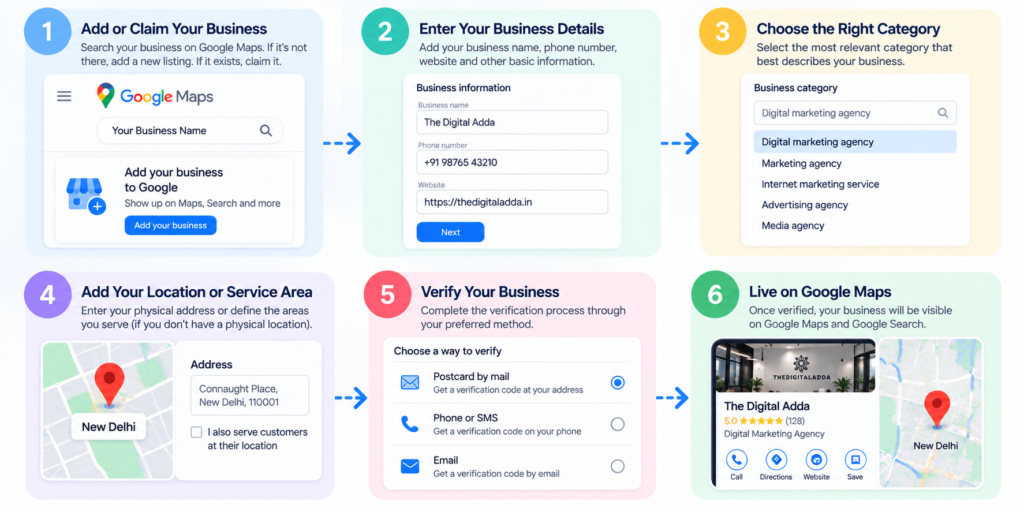
Step 1: Search for Your Business on Google Maps
Before creating a new listing, search for your business name on Google Maps.
This is important because a Business Profile may already exist even if you did not create it yourself.
Search:
Your Business Name + City
For example:
The Digital Adda Delhi
You may find:
- Your business already has a verified profile.
- Your business has an unverified profile.
- Your business does not appear on Maps.
Your next step depends on what you find.
Step 2: Add or Claim Your Business
If your business does not exist on Google, you can create a Business Profile through Google’s official Business Profile process.
Google currently directs businesses to business.google.com/add to add a new business. You then enter your business details and follow the available verification process.
If an unverified listing already exists, you can claim it instead.
Google’s current process allows you to search for the business on Google Maps, select “Claim this business” and then choose “Manage now.”
If someone else has already verified the profile, you can request ownership if you are authorized to manage the business.
Step 3: Enter Your Real Business Name
Use the business name that your company actually uses in the real world.
For example:
The Digital Adda
Do not add extra keywords simply to make the listing appear for more searches.
Avoid changing:
The Digital Adda
into:
The Digital Adda | Best SEO & Digital Marketing Agency in Delhi
Google’s guidelines say the business name should accurately reflect the real-world name of the business. Adding unnecessary information to the name is not permitted and can create problems with the profile.
This is an important local SEO point: put keywords in the appropriate business information fields rather than forcing them into the business name.
Step 4: Choose the Correct Business Category
Your primary category helps describe what your business does.
For example, a digital marketing company may select a category relevant to its main business activity.
Choose the category that best represents your core business rather than selecting multiple unrelated categories just to target more searches.
Google recommends using the fewest categories needed to describe the overall core business.
Take time to choose the category carefully because it helps Google understand what type of business you operate.
Step 5: Add Your Business Address or Service Area
Your address should be accurate and represent your actual business location.
If customers visit your location, provide the correct physical address.
If you operate as an eligible service-area business and do not serve customers at your address, Google allows you to use a service area instead of publicly displaying the address.
Important
Do not use:
- A fake address
- A P.O. box
- An unrelated address
- A virtual office that does not meet Google’s requirements
Google’s guidelines require businesses to represent their actual location accurately.
Step 6: Add Your Phone Number and Website
Add the phone number that customers can actually use to contact your business.
Also add your official website.
For example:
Phone: Your verified business number
Website: Your official business website
Google says the phone number and website used on a Business Profile should be the authoritative information for the business and verifiable by the business owner.
Keep your business details consistent across your website and other important business listings.
Step 7: Verify Your Business
Verification is one of the most important parts of setting up a Google Business Profile.
Google determines which verification methods are available for each business. Depending on factors such as the business type, region, and other information, Google may offer different options. In some situations, more than one verification method may be required.
Available methods can include options such as:
- Video verification
- Phone or SMS
- Other methods provided by Google
You should follow the verification method shown inside your own Business Profile rather than trying to select a method that isn’t offered.
Once verified, you can manage your business information on Google Search and Maps.
Step 8: Complete Your Business Profile
Getting your business on Google Maps is only the beginning.
After verification, complete the important sections of your profile.
Add:
Business Description
Explain what your business does, what services you provide, and the areas you serve.
For example:
The Digital Adda provides digital marketing services including SEO, Google Ads, social media management, and content writing for businesses.
Keep the description useful and factual. Google does not allow promotional keyword stuffing or links in the business description.
Business Hours
Add accurate opening and closing hours.
Update them when your business schedule changes, including special holiday hours where appropriate.
Services
Add the services your business actually provides.
For a digital marketing agency, this could include:
- SEO Services
- Google Ads Management
- Social Media Management
- Content Writing
Internal linking opportunity: [Internal Link: Google Business Profile Optimization]
Step 9: Add High-Quality Photos
Photos can help customers understand your business before contacting you.
Depending on your business, consider adding:
- Logo
- Exterior photos
- Interior photos
- Team photos
- Product photos
- Service-related photos
- Work examples
Use genuine images that represent your business.
Avoid uploading unrelated stock images simply to make the profile look active.
Google also has specific policies for Business Profile photos, videos, and posts. (Google Help)
Step 10: Encourage Genuine Customer Reviews
Reviews are an important part of a local business presence.
After completing a genuine transaction or service, you can ask customers to leave an honest review.
For example, you could send a simple message:
“Thank you for choosing our business. If you were happy with our service, we would appreciate an honest Google review.”
Do not create fake reviews or ask people to post misleading experiences.
The goal should be to collect genuine feedback from real customers.
Google’s Business Profile Learning Center also provides tools for sharing a review link or QR code with customers.
Step 11: Respond to Customer Reviews
Do not simply collect reviews and forget about them.
Check your profile regularly and respond to customer feedback.
For positive reviews, a simple thank-you can be enough.
For negative feedback, keep your response professional and focus on addressing the customer’s concern.
Avoid sharing private customer information in public replies.
Step 12: Keep Your Business Information Updated
Business information can change over time.
For example:
- Your phone number may change.
- Your business hours may change.
- You may move to another location.
- You may add new services.
- Your website may be updated.
Google allows verified businesses to edit information such as address, hours, contact information, and photos.
Make it a habit to review your profile regularly.
How to Improve Your Google Maps Visibility
Simply creating a profile does not mean you will automatically appear for every local search.
Local visibility depends on several factors, including how relevant your business is to the search and whether your business information is accurate and useful.
A practical local SEO process can include:
- Complete your Business Profile
- Use the correct primary category
- Keep business information accurate
- Add relevant services
- Upload genuine photos
- Collect genuine reviews
- Respond to reviews
- Maintain your website
- Build relevant local citations
- Create useful location-based website content
For a Delhi-based business, for example, your website can have useful service content related to the actual areas you serve rather than creating duplicate pages simply by changing city names.
Common Google Maps Mistakes to Avoid
1. Adding Keywords to Your Business Name
Use your real business name instead of adding multiple keywords.
2. Creating Duplicate Profiles
Google’s guidelines generally call for one profile per business location, with specific exceptions for certain practitioners, departments, and other situations.
3. Using a Fake or Virtual Address
Your address must meet Google’s requirements and accurately represent your business.
4. Creating Fake Reviews
Reviews should come from genuine customer experiences.
5. Ignoring Your Profile After Verification
A Business Profile needs regular attention when information changes.
6. Using Misleading Business Information
Your business name, address, category, phone number, website, and other details should accurately represent your business.
A Simple Google Maps Setup Checklist
Before considering your profile complete, check:
- Business is eligible
- Business has been added or claimed
- Correct business name is used
- Correct primary category is selected
- Address or service area is accurate
- Phone number is correct
- Website is added
- Business has been verified
- Business description is complete
- Services are added
- Business hours are correct
- Genuine photos are uploaded
- Customers can leave reviews
- Reviews are monitored and answered
- Business information is reviewed regularly
Final Thoughts
Getting your business on Google Maps in 2026 starts with creating or claiming an eligible Google Business Profile and completing Google’s verification process.
But local SEO does not end when your profile becomes visible.
Keep your business information accurate, use the correct category, add useful services and genuine photos, encourage honest reviews, respond to customers, and make sure your website supports the information shown on your profile.
For businesses targeting a specific location, Google Maps can be one part of a broader local SEO strategy. Your website, Google Business Profile, customer reviews, local content, and other online business information should all present a consistent and accurate picture of your business.
The key is simple: give Google accurate information and give customers useful information.
Frequently Asked Questions
1. Is it free to put my business on Google Maps?
Yes. Google allows eligible businesses to add or claim a Business Profile at no charge.
2. How long does it take for my business to appear on Google Maps?
The process can vary because Google determines the verification method and may require additional verification. You need to successfully add or claim and verify the Business Profile before managing its information on Google.
3. Can a service-area business appear on Google Maps?
Eligible service-area businesses can have a Business Profile even when they do not serve customers at their business address. Google provides options for service areas and, where appropriate, not displaying the address publicly.
4. Can an online-only business create a Google Business Profile?
Generally, no. Google Business Profiles are intended for eligible businesses that make in-person contact with customers. Online-only businesses are listed among businesses that are not eligible.
5. What should I do if someone else has claimed my business profile?
If a Business Profile has already been verified by someone else and you are authorized to manage the business, Google provides a process to request ownership of the profile.